YouCam Makeup: Face Editor
- 4.0
- Rating
- 100.00M
- Installs
- Free
- Price

 Analysis by App-foxy
I approached YouCam Makeup as a practical photo-editing app rather than a simple collection of beauty effects. Its focus is clear: helping me adjust a selfie, experiment with makeup and hair looks, and make broader edits to the face and body before sharing an image. That makes it more ambitious than a basic filter camera, but also more demanding if I want results that still look like me.
In my experience, the app is most useful when I treat it as an editing workspace instead of pressing the strongest effect and accepting the first result. A light touch can clean up a quick portrait, while the deeper tools let me explore a completely different appearance. The difference between those two uses matters, because the app can produce a polished image or an obviously artificial one depending on how carefully I work.
How the free app fits into a real editing routine
YouCam Makeup is a free photography app from Perfect Mobile Corp., available to an Everyone audience. It has been around since Aug 7, 2014, and its reach is substantial: more than 100 million installs, with an average rating of 4.1 from around 4.1 million ratings. Those numbers suggest that it is not a niche tool built for professional retouchers; it is a mainstream option for people who want fast, approachable portrait editing on a phone.
You May Also Like

 Blood Strike: 2.5 Anniversary
Blood Strike’s Loadouts Turn Every Drop Into a Tactical Gamble
A close look at Blood Strike’s custom loadouts: how fast access to signature weapons reshapes its battle royale rhythm, rewards preparation, and narrows the gap between fights.

 Pandora - Music & Podcasts
Pandora’s Music Is Easy to Start, but Harder to Recover
Pandora’s strength is its low-effort path from a seed to a station. Its weak spot is how much confidence it asks you to place in connection, setup, and quiet recovery.

 8 Ball Pool
 Is Built on Rivalries, Rematches, and Routine
A close look at the rivalries, rematches, shared routines, and unanswered safety questions that turn a quick pool match into a persistent mobile community.

 Samsung Music
’s Quiet Strength Is Playing What You Already Own
Its reach comes less from spectacle than from dependable access to a personal library. That simplicity is both the app’s strongest retention engine and its ceiling.

 AccuWeather: Weather Radar
AccuWeather Review: A Quick, Clear Forecast for Everyday Decisions
For everyday plans, the best forecast is the one you can understand quickly. AccuWeather makes rain timing, radar, and local conditions easy to act on, with a few trade-offs.

 Hill Climb Racing
Why Hill Climb Racing Still Turns Crashes Into One More Run
A tiny car, a bumpy hill and one more upgrade: Hill Climb Racing keeps resurfacing because its simple chaos makes every near-miss feel personal.
More From Our News Desk
View All News


The free starting point is important. I can try the core experience without paying upfront, which makes the app easy to evaluate for a particular routine. The purchase model is separate from that free access: optional in-app items range from $0.69 to $119.99 per item. That is a wide span, so I would not assume that every look or advanced option is included simply because the app itself costs nothing. Before committing to a purchase, I would check exactly what the selected item unlocks and whether it is something I will use repeatedly.
This pricing structure changes the value question. Someone who only needs occasional touch-ups may get enough from the free portion and never need to spend anything. Someone who wants a large library of specialized looks or intends to use the app as a regular beauty-planning tool may encounter more reasons to consider paid items. The sensible approach is to use the free tools on several different photos first, then decide whether the extra options solve a real problem rather than buying because an effect looks appealing in a preview.
The app’s main strength is that it brings several kinds of portrait editing into one place. Instead of switching between a makeup simulator, a hairstyle tool, and a general retoucher, I can work on the same image in one session. That is convenient, especially when I am preparing a profile picture or checking how a different look might appear before trying it in person.
What the editing experience does well
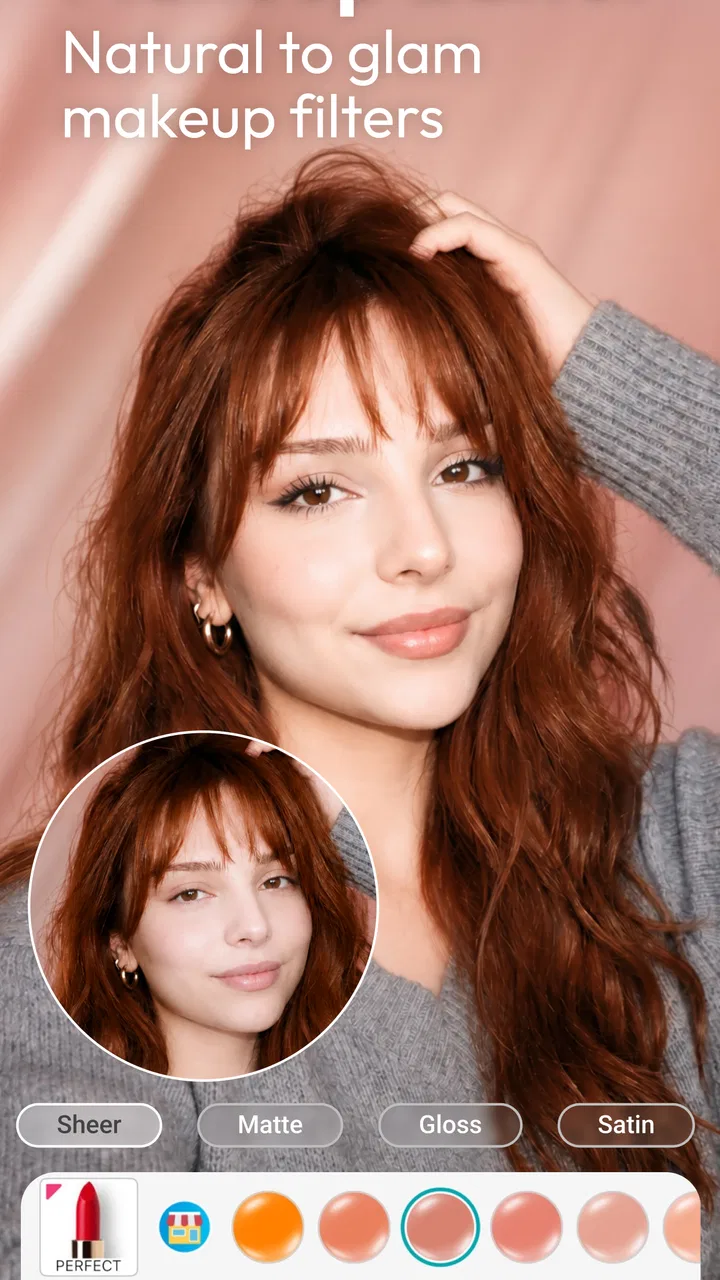
The makeup side is the natural entry point. I can use it for a quick color experiment, a more complete virtual look, or a restrained correction that simply makes a face appear more finished. The useful distinction is not the number of effects but the control I keep over intensity. Strong makeup overlays can be entertaining, yet they are rarely the best choice for a believable headshot. Reducing the strength and checking the result at normal viewing size gives me a better sense of whether the edit improves the image or merely announces itself.
Hair filters are useful for exploration rather than certainty. They can help me decide whether a color family or general style is worth considering, but a phone preview cannot reproduce the texture, lighting, and movement of real hair. I would use the feature to narrow down ideas before showing a stylist a reference, not as a promise of how a finished haircut will look.
The broader retouching tools make the app more than a makeup overlay. Adjusting facial details and body proportions can be helpful when the original photo has an awkward angle or distracting imbalance. At the same time, these controls need restraint. A small correction can restore the impression I had when taking the photo; a large correction can change posture, proportions, and the identity of the subject. I found that comparing the edited image with the original after every major change is one of the simplest ways to avoid going too far.
A particularly practical workflow is to make a neutral version first. I start with small corrections, save or review that result, and only then try a more expressive makeup or hair variation. This creates a useful reference point. If the dramatic version feels excessive, I can return to the restrained edit instead of rebuilding the photo from the beginning. It also helps separate genuine lighting or skin improvements from cosmetic effects that only look impressive at full-screen size.
Everyday situations where it earns its place
Imagine I need a new profile photo after an unexpectedly good day outdoors, but the picture has uneven lighting and a distracting blemish. YouCam Makeup can be useful here because I can correct the small issue, soften the overall appearance, and test a few makeup variations without opening a separate editor. The best result is not necessarily the most transformed one. For a work profile or social account, I would keep the edit close enough to the original that people recognize me immediately.
Another realistic use is planning for an event. Before a party, ceremony, or photo session, I can try a warmer lip color, a different eye treatment, or a hair tone on an existing selfie. This does not replace trying products in person, but it can prevent random choices. I would take several photos in different lighting rather than trusting one image, because a look that works under a bright indoor lamp may feel wrong in daylight.
The app can also help when I want a playful image rather than a realistic one. A stylized hair change or stronger makeup treatment can suit a social post, a themed invitation, or a private experiment. In that setting, visible editing is part of the point. The same effect that feels too artificial for a professional portrait may be exactly right for a creative image.
One less obvious benefit is comparison. I can create variations from the same base photo and judge them side by side instead of relying on memory. That is useful when choosing between subtle and dramatic options. I recommend changing one category at a time—makeup first, then hair, then facial or body adjustments—because changing everything together makes it difficult to understand which edit is actually helping.
Where the app needs careful handling
Automatic beauty editing is convenient, but it is not equally convincing in every photo. Face angle, hair crossing the face, unusual lighting, and low-contrast features can make an effect look less natural. I would expect the best results from a clear portrait with the face visible, while a group photo or a heavily shadowed image may require more patience. This is not a reason to reject the app; it is a reason to judge each result at ordinary viewing size instead of assuming that every filter will behave consistently.
Body tuning deserves particular caution. It can correct the visual distortion caused by a pose or lens perspective, but it can also create strange lines around clothing, furniture, walls, or other people. I look at the background after every body adjustment, especially near straight edges. If the surroundings bend or stretch, the edit has gone beyond what the photo can support convincingly.
There is also a personal trade-off. Constantly adjusting facial or body features can make a normal photo feel defective when it is not. I prefer to use these tools for a specific visual problem, such as a harsh shadow or an awkward crop, rather than automatically changing everything. The app gives me control, but it cannot decide whether an alteration improves the image emotionally or only makes it more polished.
The free model can introduce another kind of friction. Since optional purchases range from inexpensive items to much higher-priced individual options, the apparent simplicity of the download does not tell me the eventual cost of a particular editing habit. I would be especially careful if I am tempted by several separate looks. A single purchase may feel minor, but repeated impulse buying can change the value calculation quickly. For me, free access is attractive precisely because it allows testing before spending.
I would also avoid treating the app as a replacement for a full photo editor. It is specialized around appearance and portraits. If I need careful color grading, detailed layer work, precise masking, or a broader set of photographic adjustments, a conventional editor may be the better choice. YouCam Makeup is faster for face-centered changes, but that speed comes from narrowing the experience around a particular type of image.
How it compares with ordinary alternatives
Compared with a standard camera app, this tool offers much more control after the picture has been taken. A camera filter is usually quick and consistent across the whole image, while YouCam Makeup lets me focus on the face, hair, makeup, and body. The trade-off is that a camera filter is easier to apply without overthinking. If I want a fast color mood for a landscape or a casual snapshot, I would choose the simpler option.
Compared with a general-purpose photo editor, this app is more approachable for beauty-related changes. I do not need to build a complex selection before trying a makeup color or hair variation. That makes it a better fit for casual portrait editing, especially when I want to see a result quickly. A general editor remains preferable when I need exact control over the entire frame or want to preserve a highly natural photographic style.
Compared with editing manually in several separate apps, the all-in-one workflow is its clearest convenience. I can move from a face correction to makeup, hair, and body adjustments without exporting intermediate files. That saves time, but it can also encourage me to keep editing simply because another option is available. I get better results when I decide what the photo needs before opening the tool, rather than browsing effects until the original character disappears.
Who will get the most value
I think the app suits people who regularly take selfies, update profile pictures, experiment with personal style, or create beauty-focused social content. It is also useful for someone who wants to preview a few ideas before buying makeup or changing a hairstyle. The free entry point makes it reasonable for occasional users, while the broader feature set gives frequent portrait editors room to explore optional purchases if they find a lasting use for them.
It is less suitable for photographers who want a neutral, documentary finish or precise professional retouching. I would also suggest skipping it if body and facial alteration tools are likely to make you unhappy with ordinary photos. The app is designed around changing appearance, so users who prefer minimal intervention may find a basic exposure, crop, and color editor more comfortable.
For families or shared devices, the Everyone age rating makes the app broadly accessible, but that does not remove the need for sensible supervision around edited images and purchases. I would explain that virtual makeup and body adjustments are creative tools, not measurements of how someone should look. That framing is especially important when younger users are experimenting with appearance.
My practical way to use it
I begin with the original photo and make one small correction. Then I inspect the eyes, hairline, jaw, clothing edges, and background before adding another effect. This catches the most common problems early: a filter that does not align with the face, a hair effect that looks pasted on, or a body adjustment that distorts a nearby object.
For a realistic result, I keep the strongest changes for the final experiment rather than the first pass. I also compare the image at thumbnail size and full-screen size. At full screen, tiny imperfections can dominate my attention; at thumbnail size, I can tell whether the overall portrait still feels balanced. This two-step check is particularly helpful when choosing between a subtle edit and a more stylized one.
I would not pay for an item until I have identified a repeatable use for it. If I am preparing one event photo, free tools may be enough. If I am repeatedly testing a certain type of look and the selected purchase clearly improves that workflow, the cost may be easier to justify. Because individual in-app items can reach $119.99, I would read the purchase screen carefully and avoid assuming that a payment unlocks everything in the app.
My buy-or-skip verdict
YouCam Makeup is worth trying if I want quick, face-focused editing with makeup, hair, and body tools in the same photography app. Its free access lowers the risk of testing it, and its large user base shows that it has become a familiar choice for this kind of work. I especially like it for experimenting with looks and polishing a portrait without learning a complicated desktop-style editor.
My recommendation comes with a clear condition: use the app as a creative assistant, not as a demand to perfect every photo. The strongest value is in controlled experimentation, event preparation, and modest portrait cleanup. The weaker value appears when I need exact professional retouching, broad photographic controls, or a completely untouched image.
I would start free, test the same editing routine on several kinds of portraits, and only consider an optional item after seeing a genuine benefit. If the results still look like me and solve a specific problem, the app can be a convenient addition to my phone. If every edit pushes the image toward an artificial appearance, or if the purchase options feel difficult to justify, I would skip the extras and use a simpler editor instead. The app is most valuable when its tools support the photo rather than become the subject of it.
FAQs for YouCam Makeup: Face Editor
01What features does YouCam Makeup offer?
YouCam Makeup provides a variety of features to enhance your selfies, including virtual makeup application, skin smoothing, and teeth whitening. Users can experiment with different styles using augmented reality technology, allowing them to try makeup before buying. Additionally, the app offers hair color simulation and a beauty community for inspiration.
02Is YouCam Makeup free to use?
Yes, YouCam Makeup is free to download and use. However, it offers in-app purchases and a premium subscription for access to additional features and content. These include exclusive makeup looks, advanced editing tools, and an ad-free experience. Users can choose to subscribe for a monthly or yearly fee.
03Can YouCam Makeup be used offline?
While YouCam Makeup is primarily designed for online use to access its full range of features, some basic editing functions may be available offline. However, for the best experience, including accessing new makeup styles and community features, an internet connection is recommended.
04How does YouCam Makeup ensure user privacy?
YouCam Makeup takes user privacy seriously by implementing data encryption and secure storage practices. The app requires permission to access your camera and photos for editing but does not store personal data without consent. Users can review and manage permissions in their device settings to ensure their privacy preferences are met.
05Is YouCam Makeup suitable for all skin tones?
Yes, YouCam Makeup is designed to accommodate a wide range of skin tones. The app's advanced technology allows for realistic virtual makeup application across diverse complexions. Users can adjust settings to match their unique skin tone, ensuring a personalized and accurate makeup experience.
Pros
- Intuitive interface for easy navigation.
- Wide range of makeup styles available.
- Real-time makeover in selfie mode.
- Advanced facial recognition technology.
- Frequent updates with new features.
Cons
- Some features require in-app purchases.
- Occasional lag on lower-end devices.
- Limited options without a subscription.
- Ads can be intrusive at times.
- High battery consumption during use.

YouCam Makeup: Face Editor
Gallery